All Categories
- ATEN
- EPSON
- HISENSE
-
AV Signal Distribution
In AV Signal Distribution
- JK
-
Screens
In Screens
-
Projector
-
Cables
In Cables
- DTECH
- Business
- VISION
-
Projector Bracket
In Projector Bracket
-
Digital Signage Solutions
In Digital Signage Solutions
Brands
-
Audio
In Audio







All Categories
- ATEN
- EPSON
- HISENSE
-
AV Signal Distribution
In AV Signal Distribution
- JK
-
Screens
In Screens
-
Projector
-
Cables
In Cables
- DTECH
- Business
- VISION
-
Projector Bracket
In Projector Bracket
-
Digital Signage Solutions
In Digital Signage Solutions
Brands
-
Audio
In Audio

BROWSE CATEGORIES
Help
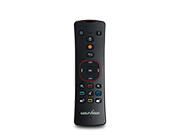
Wireless Presentation Systems Accessories
Wolfvision Cynap Pure Remote – CYNAPREMOTE
R3,054.57
Optional handheld remote with a QWERTY keyboard for running a WolfVision Cynap Pure or Cynap Core Pro from the room.
- WolfVision item 102778
- Listed for Cynap Pure Mini, Cynap Pure, Cynap Pure Pro and Cynap Core Pro
- Videobar and Cynap Pro compatibility unconfirmed
- Connects through a USB receiver in a rear USB 3.0 port
- Runs on two batteries
- Brand :Wolfvision
- SKU :WOLFVISION-CYNAPREMOTE
- Category :Wireless Presentation Systems Accessories
- Availability :
 In Stock
1 in stock
The WolfVision Cynap Pure Remote is the handheld remote control WolfVision sells for its Cynap wireless presentation systems as item 102778. It talks to the Cynap through a USB receiver plugged into the unit and has a QWERTY keyboard for text entry. WolfVision lists it for four models: the Cynap Pure Mini, Cynap Pure, Cynap Pure Pro and Cynap Core Pro. Compatibility with the Cynap Videobar, Cynap Pro, Cynap Bridge and the newer Cynap Pure (Next Gen) is unconfirmed.
Which Cynap systems the remote works with
WolfVision’s accessory list for item 102778 names the Cynap Pure Mini, the Cynap Pure, the Cynap Pure Pro and the Cynap Core Pro. On each, the remote is an optional extra, not part of the box. The same accessory page lists a power supply for the Cynap Pure (Next Gen) but does not say whether the remote entry covers that model.
The Cynap Pro, Cynap Videobar and Cynap Bridge are not on the list. WolfVision mentions a remote control for each of them elsewhere, without saying whether it is item 102778.
On the Core Pro, WolfVision’s quick start guide gives the remote as one of three ways into the password-protected settings, alongside a browser opened at the Cynap’s IP address and a USB mouse and keyboard.
Pairing the remote with its USB receiver
The remote pairs with a separate USB receiver (dongle) that plugs into one of the USB 3.0 sockets on the back of the Cynap, with a USB extension cable if needed. WolfVision’s pairing routine:
- Have the receiver ready, with a computer or USB charger to power it.
- Take the two batteries out of the remote and put them back. The LED on the Fn key flashes.
- Within one minute, hold Fn and P on the keyboard until the Fn LED stays lit.
- Plug the receiver into the computer or charger. The Fn LED flashes and then goes out when pairing has worked; if it has not flashed within 10 seconds, start again.
- Move the receiver to a rear USB 3.0 port on the Cynap, then connect the Cynap to mains power.
When a handheld remote is worth having
A Cynap runs without one. WolfVision lists a web interface, a multi-touch display, a room control system, a USB keyboard and mouse and the vSolution App as control options. The handheld remote suits rooms where the display or projector has no touch input and nobody wants to open a laptop or phone just to reach the Cynap’s on-screen menus. Because it works through its own USB receiver, it needs no network access or personal device.
Key specifications
| WolfVision item code | 102778 |
|---|---|
| Listed for | Cynap Pure Mini, Cynap Pure, Cynap Pure Pro, Cynap Core Pro |
| Connection | USB receiver (dongle) in a rear USB 3.0 port on the Cynap |
| Keyboard | QWERTY, with Fn key |
| Batteries | Two (type not stated by WolfVision) |
| Pairing | Fn + P within 1 minute of inserting the batteries |
Questions about the Cynap Pure remote
Does the Cynap Pure remote work with the Cynap Pro?
That is unconfirmed. The Cynap Pro is not on WolfVision’s list for item 102778, and WolfVision’s accessory page handles a Cynap Pro remote as a separate request to WolfVision. Until WolfVision’s Cynap Pro documentation names this remote, do not assume it pairs with that model.
Does it work with the Cynap Videobar?
That is also unconfirmed. The Videobar’s product sheet lists an optional remote control without naming the model, and the Videobar is not on the list for item 102778. Until that is settled, control the Videobar from a touchscreen display, its web interface, a keyboard and mouse or the vSolution App.
Can I control a Cynap from my phone instead?
Yes. The vSolution App for iOS and iPadOS 17 or later and Android 11 or later has a remote control function for Cynap systems, and a browser on the same network can open the Cynap’s web interface at its IP address.
What if the remote stops controlling the Cynap?
Check that the receiver is still in a rear USB 3.0 port on the Cynap, then pair the remote again. Reinserting the batteries opens the one-minute window for Fn + P, and the Fn LED flashing and going out with the receiver in a computer or charger confirms the pairing.
You must be logged in to post a review.
Reviews
There are no reviews yet.