All Categories
- ATEN
- EPSON
- HISENSE
-
AV Signal Distribution
In AV Signal Distribution
- JK
-
Screens
In Screens
-
Projector
-
Cables
In Cables
- DTECH
- Business
- VISION
-
Projector Bracket
In Projector Bracket
-
Digital Signage Solutions
In Digital Signage Solutions
Brands
-
Audio
In Audio






All Categories
- ATEN
- EPSON
- HISENSE
-
AV Signal Distribution
In AV Signal Distribution
- JK
-
Screens
In Screens
-
Projector
-
Cables
In Cables
- DTECH
- Business
- VISION
-
Projector Bracket
In Projector Bracket
-
Digital Signage Solutions
In Digital Signage Solutions
Brands
-
Audio
In Audio

BROWSE CATEGORIES
Help
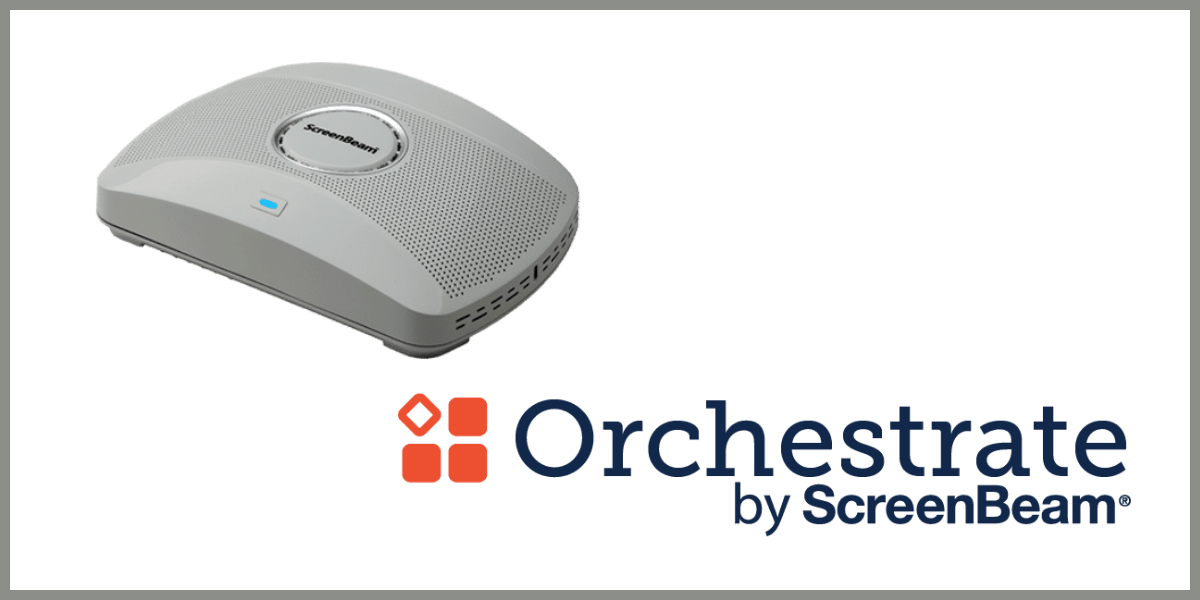
Content Management Solutions
ScreenBeam 08 1 Year Licence – SBWDO8EU1Y
R3,766.55
A one-year Orchestrate by ScreenBeam licence for schools using ScreenBeam 1000 EDU Gen 2 receivers; the "08" in the product name is ScreenBeam's shorthand, O8.
- Teacher view of up to 50 learner screens, with screen locking and web filters
- Runs only on the 1000 EDU Gen 2, firmware 11.2.20.0 or later
- Needs ScreenBeam CMS Enterprise and a ScreenBeam Cloud account
- Licence key only, no receiver included
- Brand :Screenbeam
- SKU :SCREENBEAM-SBWDO8EU1Y
- Category :Content Management Solutions
- Availability :Out of Stock
Out of stock
Orchestrate by ScreenBeam is the teacher software for ScreenBeam’s 1000 EDU Gen 2 classroom receiver. With it, a teacher sees learners’ screens, chooses what goes on the room display, locks devices and limits websites for the length of a lesson. This product is a one-year licence for Orchestrate, with no hardware. It runs only on the 1000 EDU Gen 2, and the school needs ScreenBeam CMS Enterprise and a ScreenBeam Cloud account to activate it.
What the licence adds to the free Orchestrate Lite
Without a licence, the 1000 EDU Gen 2 can run Orchestrate Lite, a free mode limited to teacher-moderated mirroring: the teacher decides who presents, previews a learner’s screen and ends any share. While Lite is on, devices using AirPlay, Miracast or Google Cast cannot connect. The licence switches on the full toolbar:
- A grid of up to 50 learner screens, and an enlarged view of any one learner.
- The teacher’s laptop, or a learner’s screen the teacher has chosen, on the room display.
- Screenshots of learner screens saved to the teacher’s PC, and a snapshot of the teacher’s screen sent to learners.
- A website opened on selected devices or the whole class (https addresses only).
- Screens blanked and keyboards locked, with an editable message.
- Allow lists, block lists and a block-all switch for websites, active only during the class.
- Chat with groups of learners, once an administrator enables it; the history clears when the class ends.
The licence also makes Concurrent Mode available. Switched on, it lets AirPlay, Miracast and Google Cast devices connect to the receiver whenever Orchestrate is not in use.
Receiver, software and devices it needs
ScreenBeam lists one compatible receiver, the ScreenBeam 1000 EDU Gen 2, on firmware 11.2.20.0 or later. The licence reaches receivers through ScreenBeam CMS Enterprise (4.4.16.0 or later in the v3.5 starting guide) and is activated in a ScreenBeam Cloud account.
Teacher and learner devices need 64-bit Windows 10 or 11 in a Pro, Education or Enterprise edition, or ChromeOS, with the Orchestrate extension in Chrome or Edge; Windows machines also run the Orchestrate Windows Assistant. ScreenBeam’s minimums are a 10th-generation Intel Core i5 with 8 GB of memory for teachers, a Core i3 with 4 GB for learners, and Intel Wi-Fi 6 (AX) or better. On the network, devices reach the receiver on TCP port 8080, Windows PCs need local port 49542 open, and cloud.screenbeam.com must pass the content filter without SSL decryption.
Activating the key and assigning seats
- A ScreenBeam Cloud user with License Manager rights enters the key on the License Management page and accepts ScreenBeam’s end-user licence agreement.
- In CMS Enterprise, an administrator assigns a seat to each 1000 EDU Gen 2 that will run Orchestrate. The Assign Licenses page shows the seats left on the key and its expiry date.
- Class rosters are imported into the Orchestrate server, and the extension and Windows Assistant reach devices through Microsoft Intune, another MDM or the Google Admin console.
Each receiver must stay connected to the CMS Enterprise that assigned its seat; ScreenBeam warns that the licence may be deactivated otherwise. The number of receiver seats on one key is not stated in our product listing, so check it before ordering for several classrooms.
Expiry, renewal and transfer: what ScreenBeam does not publish
CMS Enterprise records an expiry date for each key, but ScreenBeam’s published guides do not say what Orchestrate does after that date, how a licence is renewed, or whether a seat can move to a replacement receiver. Settle those terms before ordering, and note the expiry date when the key is activated. The same licence is listed as a three-year Orchestrate licence and a five-year Orchestrate licence.
Key specifications
| Software | Orchestrate by ScreenBeam (“08” in our name is O8) |
|---|---|
| Term | 1 year |
| ScreenBeam licence type | Instructional Tools |
| Receiver | ScreenBeam 1000 EDU Gen 2, firmware 11.2.20.0 or later |
| Seats | Assigned per receiver in CMS Enterprise |
| Key activation | ScreenBeam Cloud, License Management page |
| Teacher and learner OS | 64-bit Windows 10/11 (Pro, Education, Enterprise); ChromeOS 81.0.4044.103+ |
| Teacher view | Up to 50 learner screens |
| Hardware included | None |
Questions about the Orchestrate 1 year licence
What does “08” mean in the product name?
It stands for O8, written with a letter O: ScreenBeam’s abbreviation for Orchestrate. ScreenBeam’s v3.5 starting guide calls the browser extension “Orchestrate (O8)” and the cloud service the O8 server, so this product is the Orchestrate licence, not a receiver or a hardware part.
Can a school try Orchestrate before buying a year?
Yes, on a small scale. ScreenBeam’s evaluation includes every feature but stops at one teacher and up to three learner devices; request it through ScreenBeam’s trial page or the Application Library in ScreenBeam Cloud. Running a full class needs a licence such as this one.
Will this licence work on a ScreenBeam 960, 1100 Plus or FLEX?
No, going by ScreenBeam’s own documents. The Orchestrate v3.5 user manual, the deployment guide and ScreenBeam’s Instructional Tools page each list the 1000 EDU Gen 2 as the only compatible receiver.
Can Mac or iPad users join an Orchestrate class?
No. ScreenBeam’s Instructional Tools page notes that macOS is not currently supported, and iPadOS is not among the listed systems. Outside Orchestrate classes, a Mac or iPad can still mirror to the 1000 EDU Gen 2 over AirPlay when the receiver’s Concurrent Mode is on.
Is ScreenBeam CMS Enterprise a separate purchase?
Not according to ScreenBeam: its receiver manual calls the CMS a complimentary tool, and its 1000 EDU Gen 2 page lists CMS Enterprise as included. It is still required for Orchestrate, because the user manual says CMS applies the licence to receivers.
You must be logged in to post a review.
SBWDO8EU1Y Datasheet PDF
Reviews
There are no reviews yet.