All Categories
- ATEN
- EPSON
- HISENSE
-
AV Signal Distribution
In AV Signal Distribution
- JK
-
Screens
In Screens
-
Projector
-
Cables
In Cables
- DTECH
- Business
- VISION
-
Projector Bracket
In Projector Bracket
-
Digital Signage Solutions
In Digital Signage Solutions
Brands
-
Audio
In Audio






All Categories
- ATEN
- EPSON
- HISENSE
-
AV Signal Distribution
In AV Signal Distribution
- JK
-
Screens
In Screens
-
Projector
-
Cables
In Cables
- DTECH
- Business
- VISION
-
Projector Bracket
In Projector Bracket
-
Digital Signage Solutions
In Digital Signage Solutions
Brands
-
Audio
In Audio
BROWSE CATEGORIES
Help
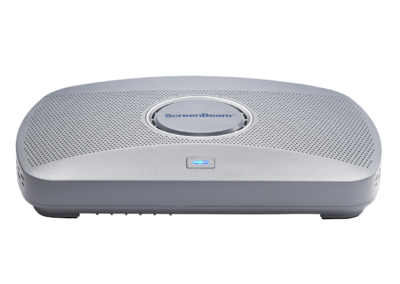
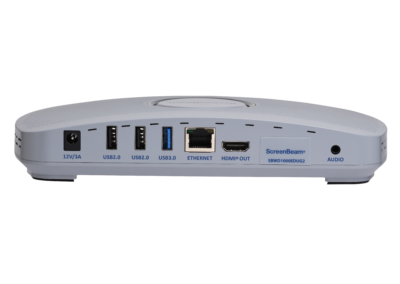
Wireless Presentation Systems
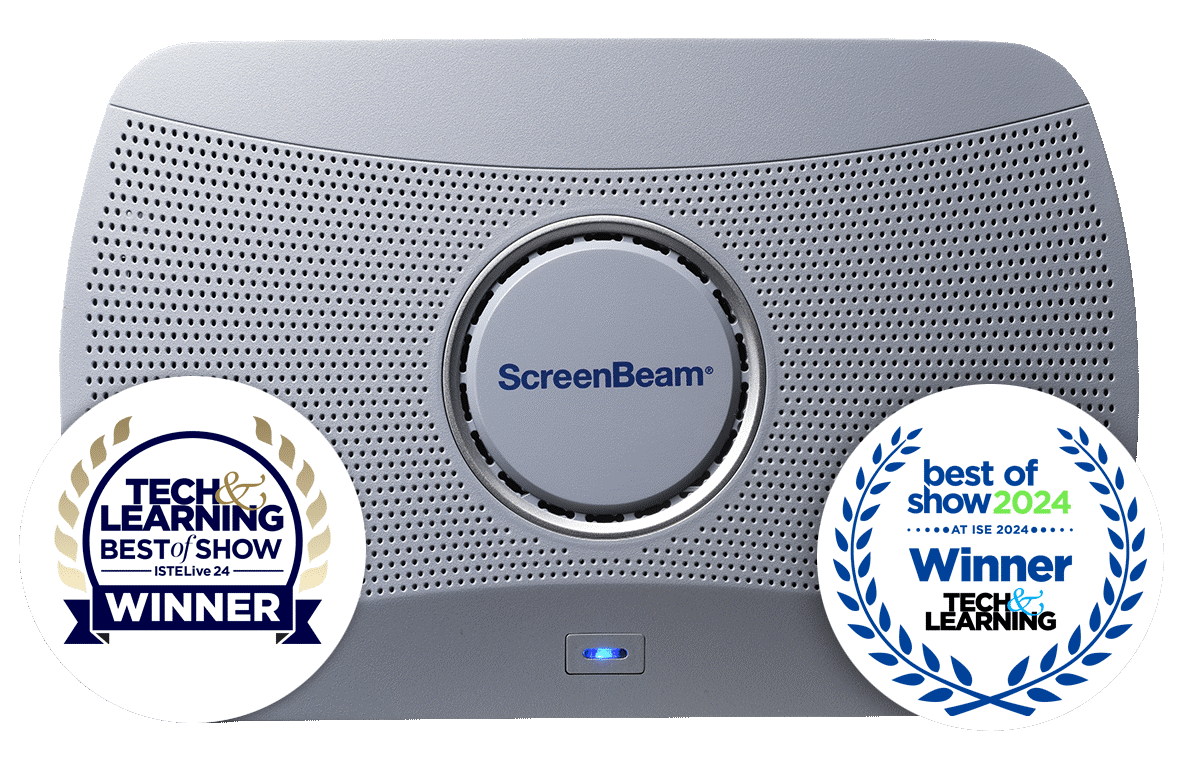
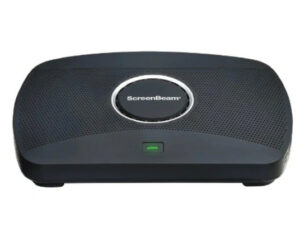
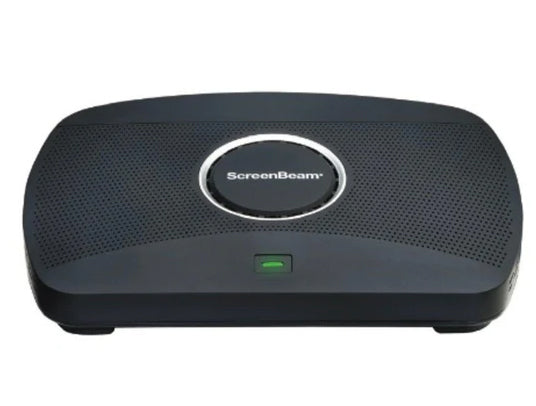
ScreenBeam Wireless Presentation System, 1000 EDU Gen 2 Classroom Commander – 1000EDCMSG2
R18,611.19
Classroom wireless display receiver for K-12 schools: teachers and learners share laptops, tablets, phones and Chromebooks to the front display.
- Shares over Miracast, AirPlay or Google Cast, 4K30 maximum
- Whiteboard app runs on the receiver from an interactive panel
- Up to four learner screens side by side with Multi-View
- Orchestrate Lite teacher moderation with no licence
- Sold to accredited K-12 schools only
- Brand :Screenbeam
- SKU :SCREENBEAM-1000EDCMSG2
- Category :Wireless Presentation Systems
- Availability :Out of Stock
Out of stock
The ScreenBeam 1000 EDU Gen 2 (catalogue number SBWD1000EDUG2, or SBWD1000EDUG2EUINL in Europe) is a wireless display receiver for classrooms. It drives the front-of-class display over HDMI at up to 4K and 30 Hz, and teachers and learners share from their own devices with Miracast, AirPlay or Google Cast, with no app or dongle. Its whiteboard app runs on the receiver, so an interactive panel works as a whiteboard with no computer attached. ScreenBeam sells it only to accredited K-12 schools.
Connecting teacher and learner devices
A teacher’s Windows 10 or 11 laptop connects with Windows key + K, directly over Wi-Fi Direct, and keeps its school Wi-Fi and internet connection while presenting; Miracast-capable Android tablets work the same way. The receiver has to be in the same room for them to find it. iPads, Macs and Chromebooks either join the same school network as the receiver or connect to the receiver’s own Wi-Fi hotspot, then use Screen Mirroring or Cast. Windows and Mac presenters can extend the desktop rather than mirror it, keeping lesson notes on the laptop. BrowserCast, added in firmware 11.2.19.0, shares a tab, window or screen from a web browser with nothing installed. ScreenBeam’s manual asks for devices from 2020 or newer.
Whiteboard, touch-back and teacher widgets on an interactive panel
With the panel’s USB touch cable connected to the receiver, a teacher can open Whiteboard by ScreenBeam from the panel itself, without switching inputs or connecting a computer. The same cable gives touch-back to a Windows laptop (Windows 10 or 11, version 21H2 or later) that is presenting over Miracast, with up to 20 simultaneous touches plus four passive pens or two active ones; Ghost Inking masks the wireless delay as the teacher writes. ScreenBeam recommends at least 4 GB of RAM and a 5th-generation Intel Core i-series or comparable AMD chip. iPads, Macs and Chromebooks mirror without touch-back. Firmware 11.2.17.1 added Name Picker and Timer widgets, as a beta. Look any panel up on ScreenBeam’s touch compatibility list first, including our interactive flat panels.
Classroom control: Orchestrate Lite, not Classroom Commander
The original 1000 EDU came with Classroom Commander, ScreenBeam’s software for orchestrating up to 50 Windows 10 and Chromebook student devices. No Gen 2 document mentions it; Gen 2 uses Orchestrate by ScreenBeam instead.
- Orchestrate Lite needs no licence. The teacher picks which learner presents, previews a screen before it goes up and can end any share. It runs through Orchestrate software on each device (a Windows Assistant, a ChromeOS app and a Chrome or Edge extension) on 64-bit Windows 10 or 11 Pro, Education or Enterprise, or ChromeOS 81 or later, and it also needs ScreenBeam CMS Enterprise, which comes with the receiver.
- While Orchestrate Lite is switched on, devices using Miracast, AirPlay or Google Cast cannot connect.
- Orchestrate, the full version, is licensed. Its Concurrent Mode lets ordinary Miracast, AirPlay and Google Cast connections in whenever Orchestrate is not in use.
Showing up to four learners’ screens with Multi-View
Multi-View shows up to four devices at once in quadrants. It takes Miracast and AirPlay sources; Chromebooks casting with Google Cast cannot join. In Quick Switch mode the next device takes over the display and the previous one is disconnected.
School network, management and alerts
Wi-Fi Direct, the receiver’s own hotspot and the school network can all carry presentations at once, so visitors can share from the hotspot. The receiver joins the school network over Ethernet or Wi-Fi; Ethernet takes priority when both are configured, and ScreenBeam recommends it for AirPlay, Google Cast and Miracast over the network. Wi-Fi security covers 802.1X with PEAP-MSCHAPv2 or EAP-TLS, and WPA3 arrived in firmware 11.2.18.3.
CMS Enterprise, included under a perpetual licence, manages receivers across classrooms and campuses from a browser. ScreenBeam’s Administrative Tools add Signage+ scheduling, Message Manager for routine notices and Alert+ for emergency alerts on a separate licensed subscription, and Signage+ runs only with ScreenBeam Cloud. Without them, the built-in signage player still shows web pages on an idle display.
How it compares with the FLEX, 1100 Plus and 960
The ScreenBeam FLEX uses the same ports, power supply and case and is open to buyers outside K-12, such as colleges and offices. Its manual also covers joining two networks at once, which the Gen 2 manual does not, but Orchestrate Lite is listed for the Gen 2 only. The ScreenBeam 1100 Plus adds an HDMI input and video calls through a room camera. The ScreenBeam 960 stops at 1080p (30 Hz), and ScreenBeam lists no Google Cast for it, a drawback in Chromebook classrooms.
In the box, power and installation
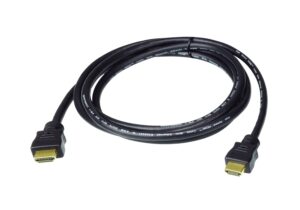
In the box, according to ScreenBeam’s brief: the receiver, its power adapter, an HDMI cable of 0.9 m (3 ft) and a magnetic mounting kit, plus a device label listed in the user manual. Ethernet and USB touch cables are not included; for the wired connection ScreenBeam specifies shielded Cat5e or better. Power comes from a 12 V DC, 3 A adapter, with a draw of 8.4 W typically and 24.8 W at peak, and ScreenBeam sells a PoE adapter separately. The case is 220 x 144 x 37.5 mm and 453.5 g, and the magnetic kit holds it on a flat steel surface.
Key specifications of the ScreenBeam 1000 EDU Gen 2
| Catalogue number | SBWD1000EDUG2 (EU: SBWD1000EDUG2EUINL) |
|---|---|
| Sharing methods | Google Cast, AirPlay, Miracast; BrowserCast (firmware 11.2.19.0 onwards) |
| Maximum resolution | 4K at 30 Hz, H.264 |
| Video output | 1 x HDMI (no HDMI input) |
| Other ports | Three USB Type-A (one USB 3.0), analogue audio out on 3.5 mm jack, Gigabit Ethernet |
| Multi-View | Up to four devices on screen |
| Classroom software | Whiteboard on the receiver; Orchestrate Lite with no licence |
| Touch-back | 20-point touch for Windows Miracast presenters |
| Management | CMS Enterprise, perpetual licence supplied |
| Power supply | 12 V DC at 3 A, drawing 8.4 W typically and 24.8 W at peak |
| Dimensions | 220 mm wide, 144 mm deep, 37.5 mm high; 453.5 g |
| Sales restriction | Accredited K-12 education institutions only |
Questions about the ScreenBeam 1000 EDU Gen 2
Can a university, college or business buy the 1000 EDU Gen 2?
Not under ScreenBeam’s terms, which restrict licence sales of this model to accredited K-12 education institutions. Colleges, universities and offices should look at the ScreenBeam FLEX, which ScreenBeam aims at higher education and business and which has the same 4K output and casting options.
Do learners’ Chromebooks need an app?
Not for ordinary sharing: ChromeOS casts to the receiver with Google Cast, which is built in. An app is needed only when the teacher uses Orchestrate Lite or Orchestrate, which run through the Orchestrate ChromeOS app or browser extension on each Chromebook.
Can learners share from an iPad?
Yes, with AirPlay Screen Mirroring, once the iPad has joined the receiver’s network or its hotspot. iPads get no touch-back from an interactive panel, and ScreenBeam’s HDCP content protection covers Miracast connections only, not AirPlay.
Does it work without the school network?
For presenting, yes: Windows and Android devices connect over Wi-Fi Direct and Apple devices or Chromebooks can join the receiver’s hotspot. Central management through CMS Enterprise, the Administrative Tools and presenting over the school network all need the receiver connected to that network.
You must be logged in to post a review.
You may also like these
Wolfvision
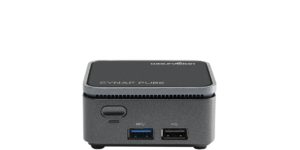
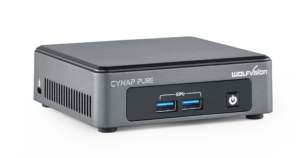
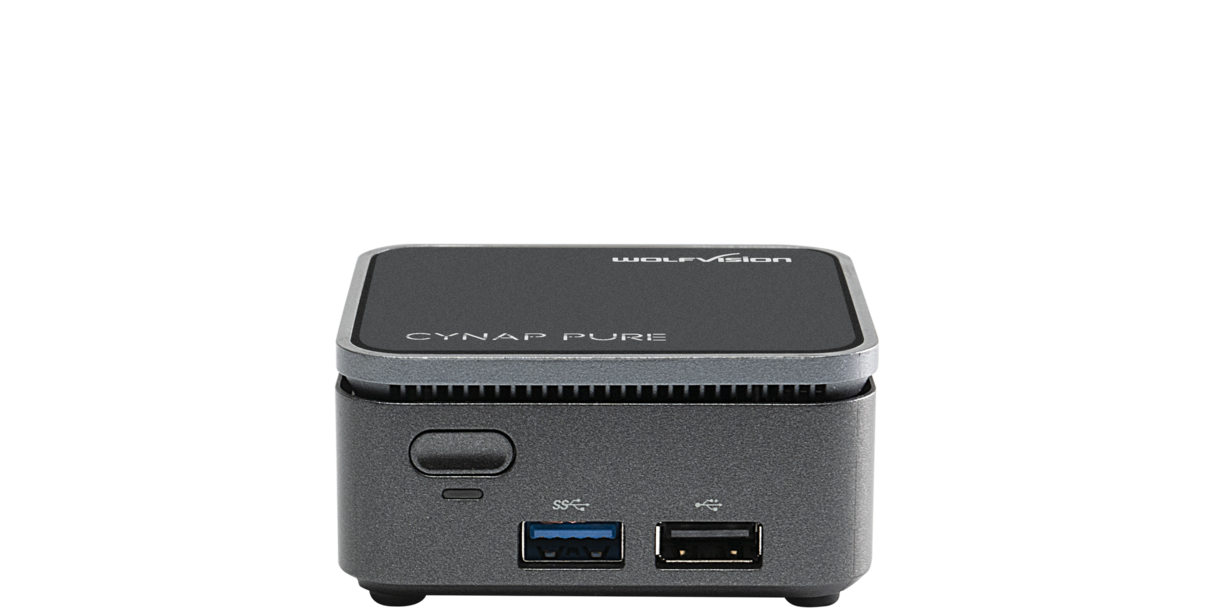
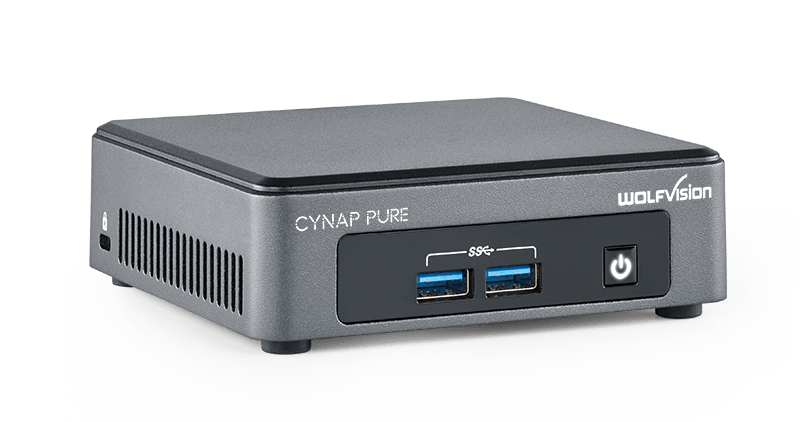
Wolfvision Wireless Presentation System - CYNAPPUREMI
R27,541.97
CYNAPPUREMI Out of Stock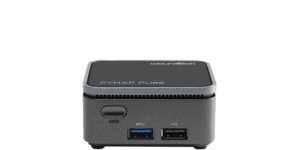
Wolfvision
 Low stock (1 left)
Wolfvision Wireless Presentation System - CYNAPPURE
R44,749.34
CYNAPPURE Low stock (1 left)
Reviews
There are no reviews yet.